Top ILL Sites
District users can use the Top ILL Sites report to get an overview of the interlibrary loan (ILL) activity in the district.
|
Note: This report is available if your district enabled district-defined ILLs. |
Run an ILL Sites Report
- Select Reports > Library Reports.
- Under Statistics, click Top ILL Sites.
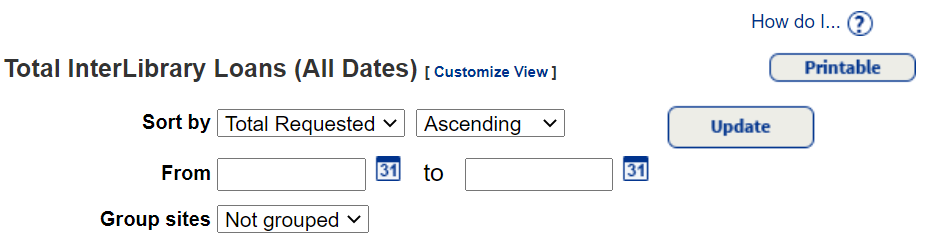
- In the first field next to Sort by, select from Total Requested, Total Loaned or Total Declined.
- In the second field after Sort by, select Ascending or Descending.
- Next to the From and to fields, enter or select starting and ending dates for the report.
- To group results, select from the Group sites drop-down.
- Click Update to view the report.
Additional Details
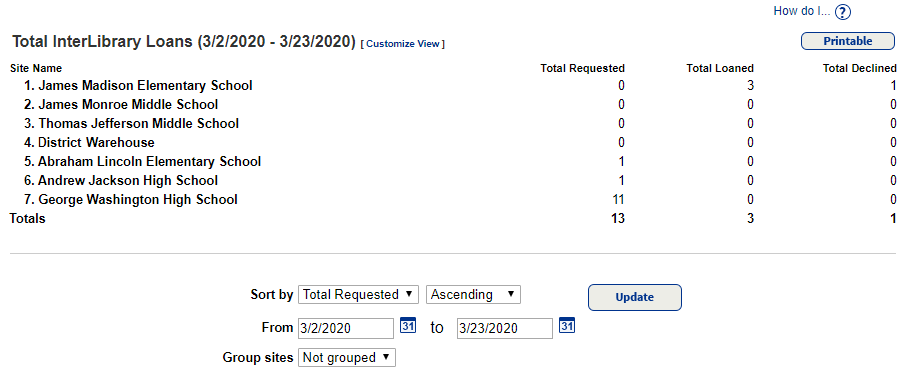
The report lists all the sites in a district and the total requested, loaned and declined interlibrary loans for each site for the selected date range.